If the food you are cooking is not among the built-in setups, or you want to use your own temperatures, you can create your own cooking setup. It is saved permanently, and when you are signed in it also appears on your other devices. In this example we make a setup for pan-seared ptarmigan.
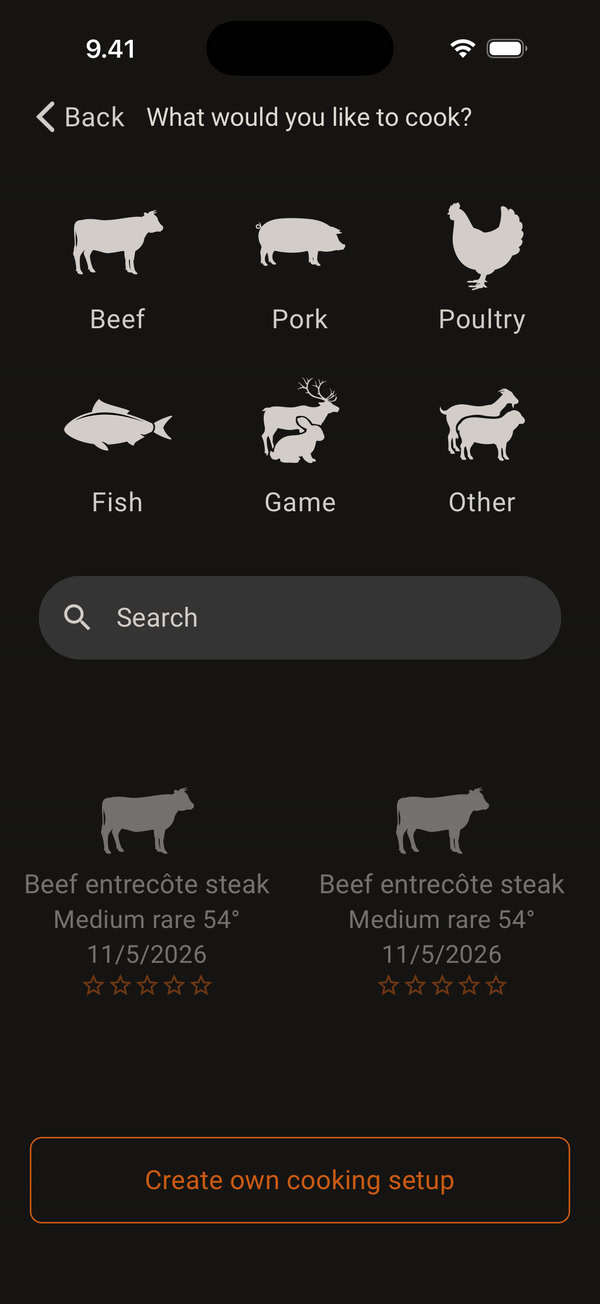
Tap Start cooking on the thermometer. Then tap Create own cooking setup at the bottom of the What would you like to cook? screen.
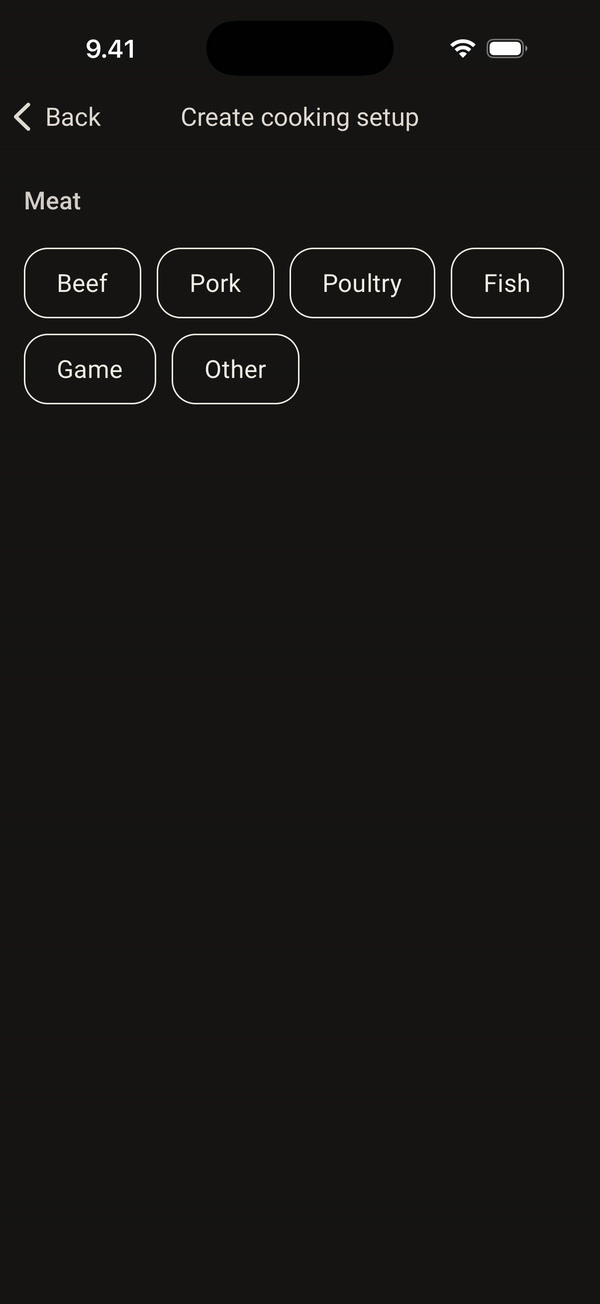
Choose the category first: Beef, Pork, Poultry, Fish, Game or Other.
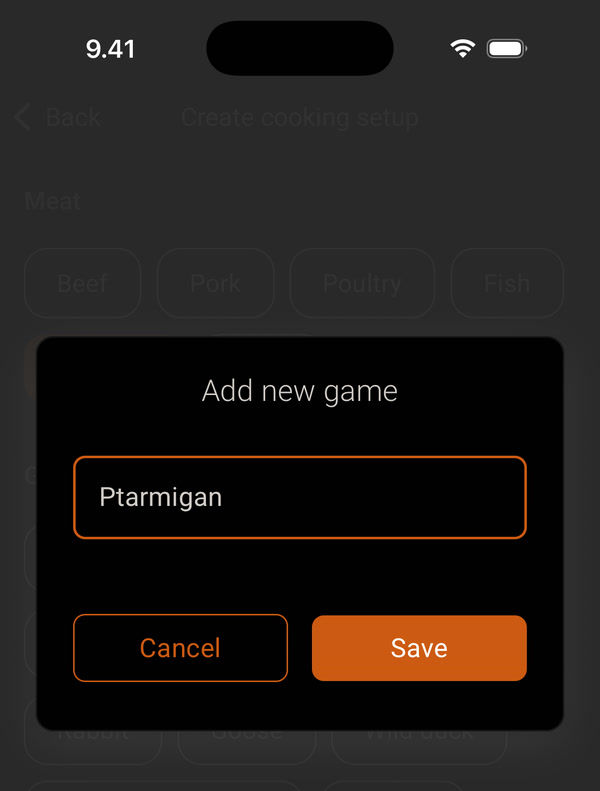
Choose the type. If there is no suitable one, tap + Add new, type a name and tap Save. You can add new types to Poultry, Fish, Game and Other.
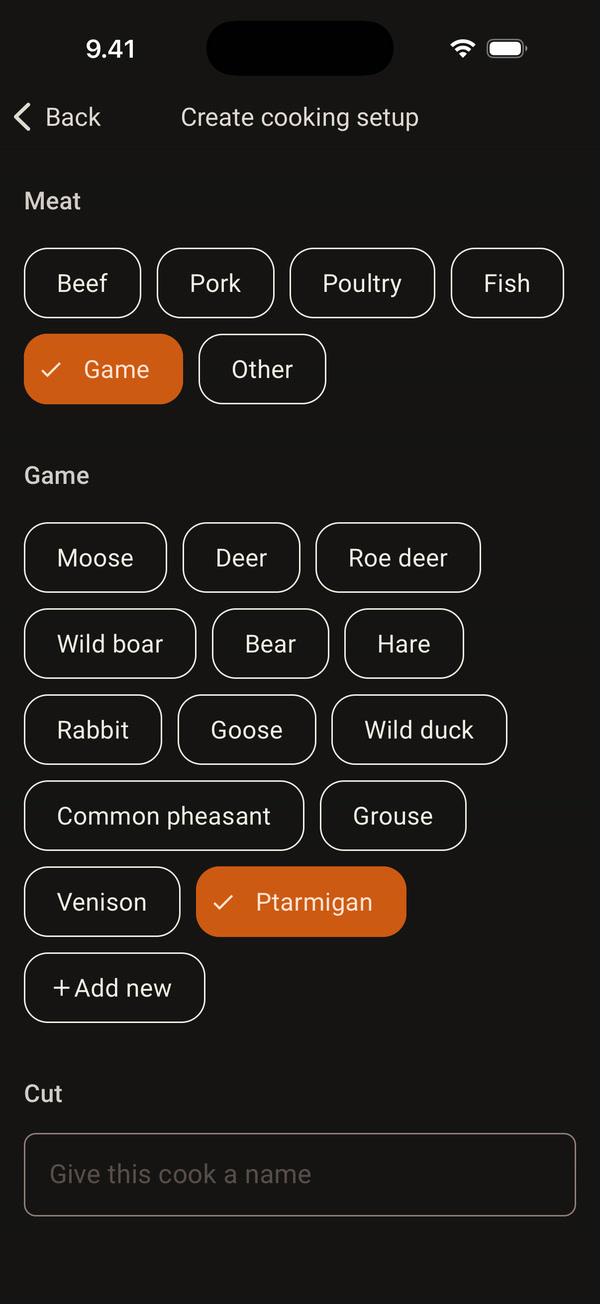
The new type is now selected. You can rename your own type later by pressing and holding it.
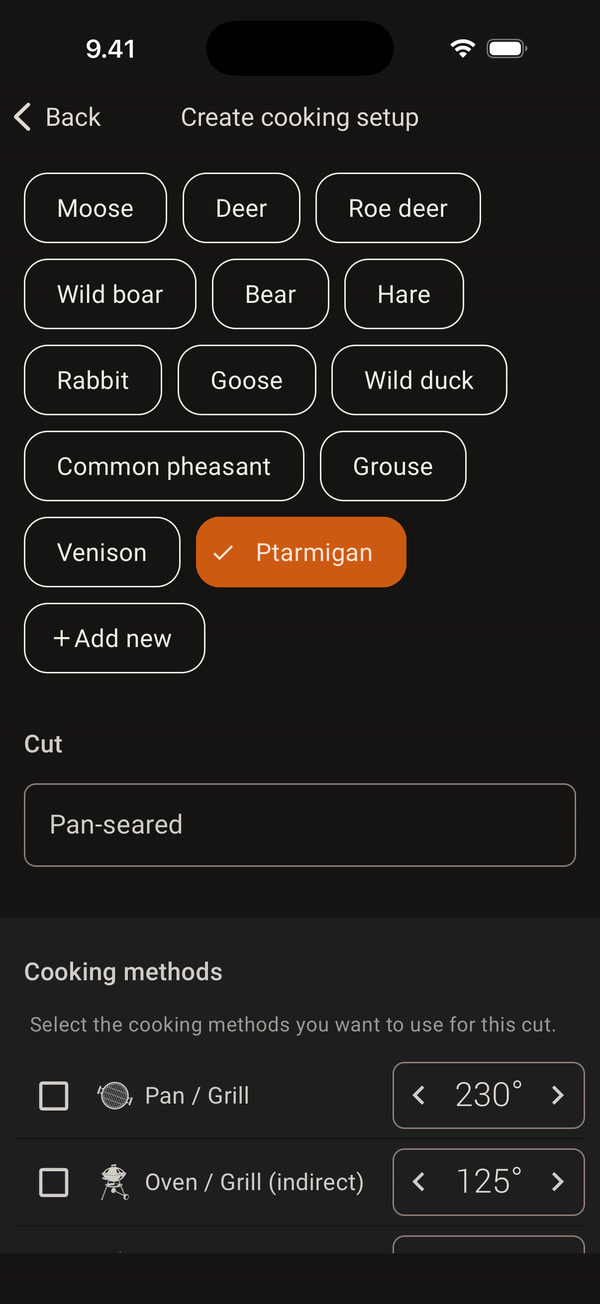
Type a name for the setup in the Cut field, for example “Pan-seared”. Two setups cannot have the same name.
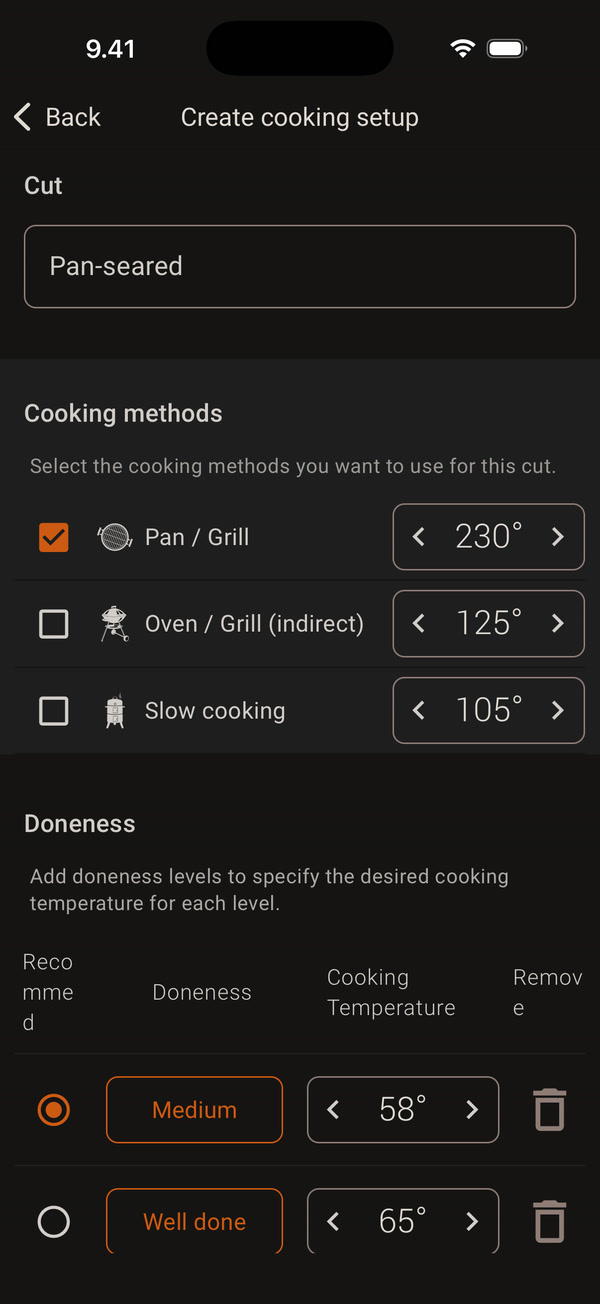
Choose the Cooking methods you use: Pan / Grill, Oven / Grill (indirect) or Slow cooking. Set the pan, grill or oven temperature for each (50–300 °C). Choose at least one method.
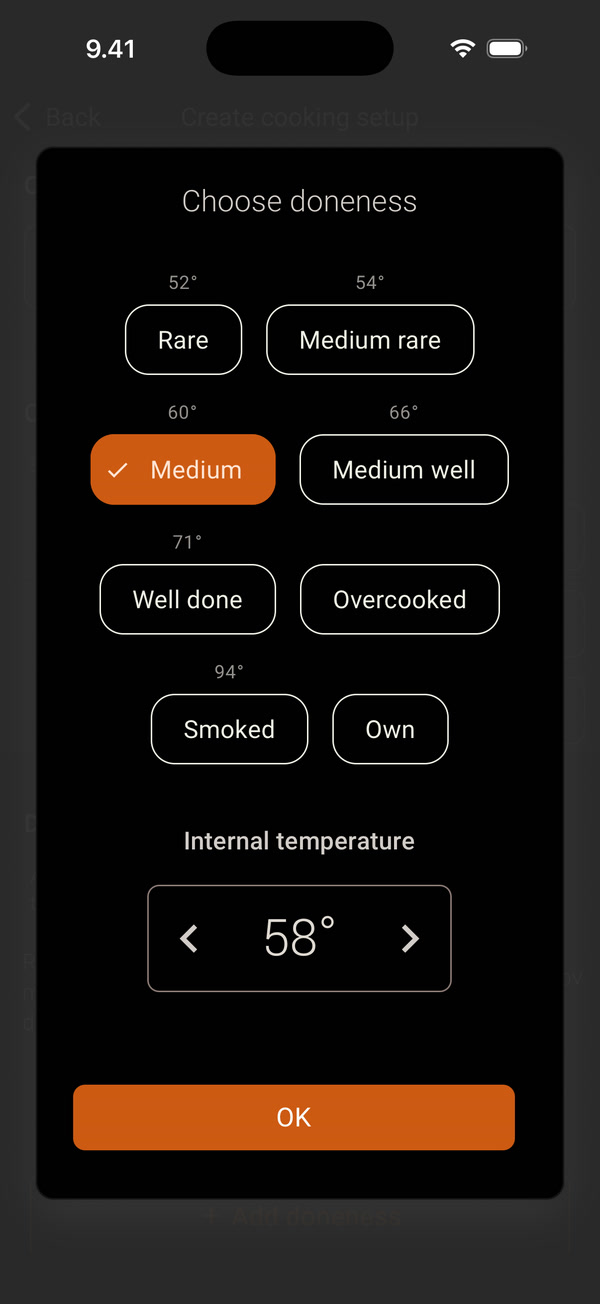
Tap the doneness name or + Add doneness. Choose the doneness and set the meat’s Internal temperature (10–99 °C). Tap OK.
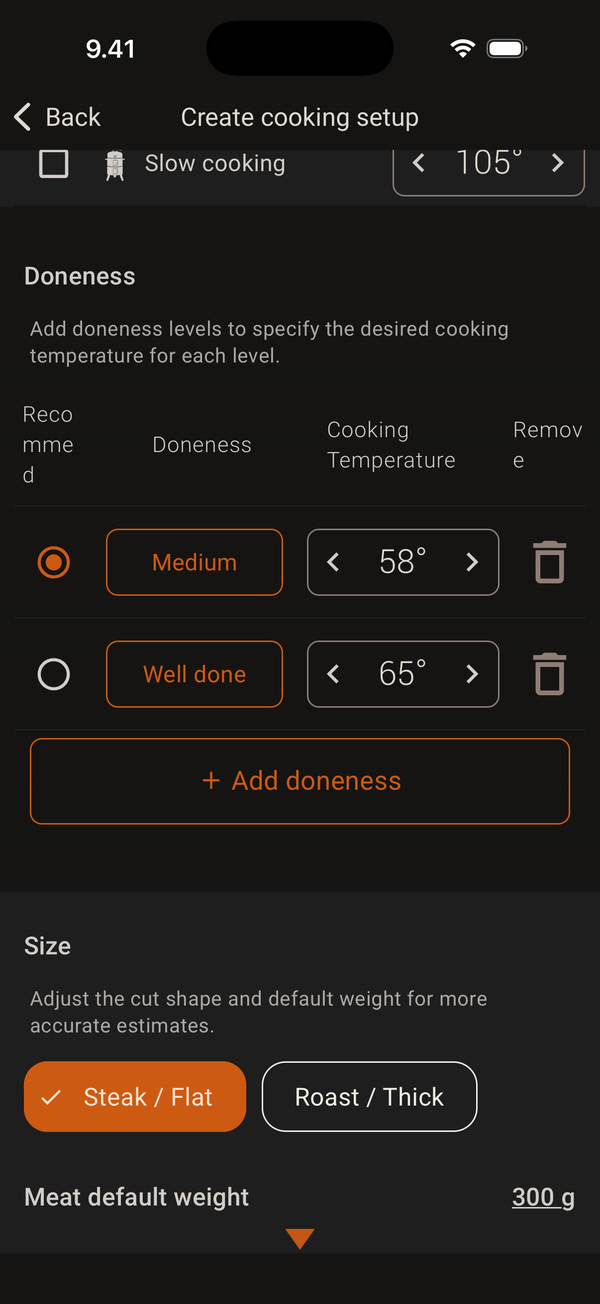
You can add up to eight doneness levels. Mark one as Recommended so that it is preselected when you start cooking. The Cooking Temperature column is the internal temperature of the meat, not the oven temperature. Two doneness levels cannot have the same temperature. Remove a row you do not need with the bin icon.
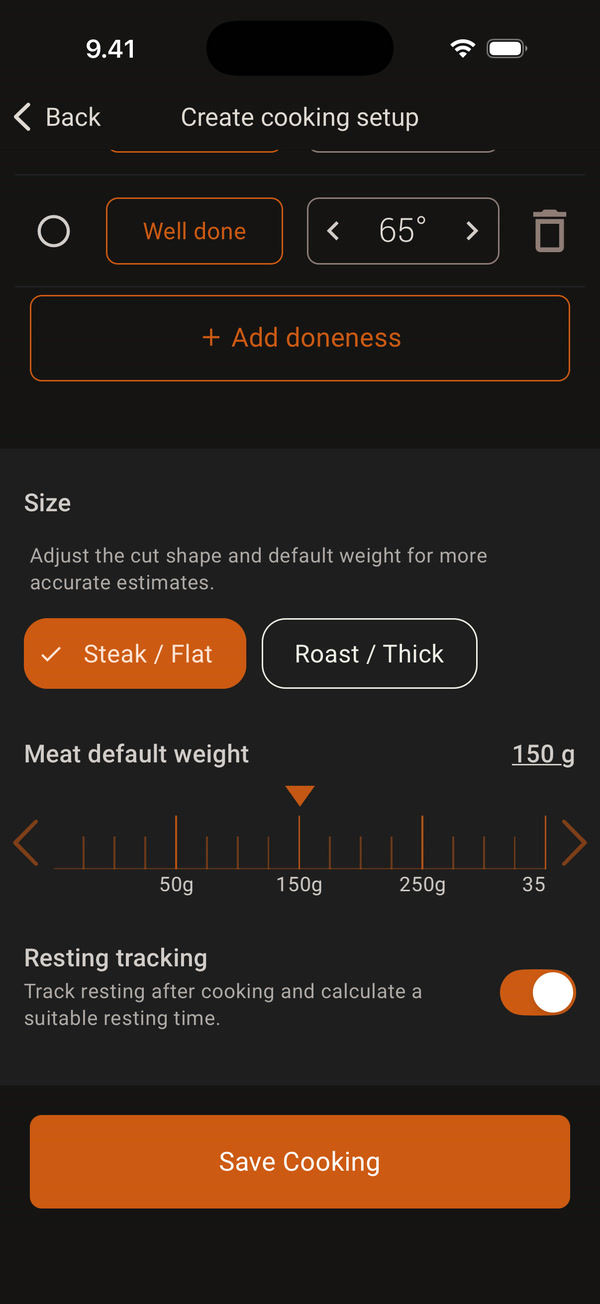
Choose the Size (Steak / Flat or Roast / Thick) and the meat’s default weight for a more accurate estimate. Keep Resting tracking on so that the app tells you when to take the meat off the heat. Finally, tap Save Cooking.
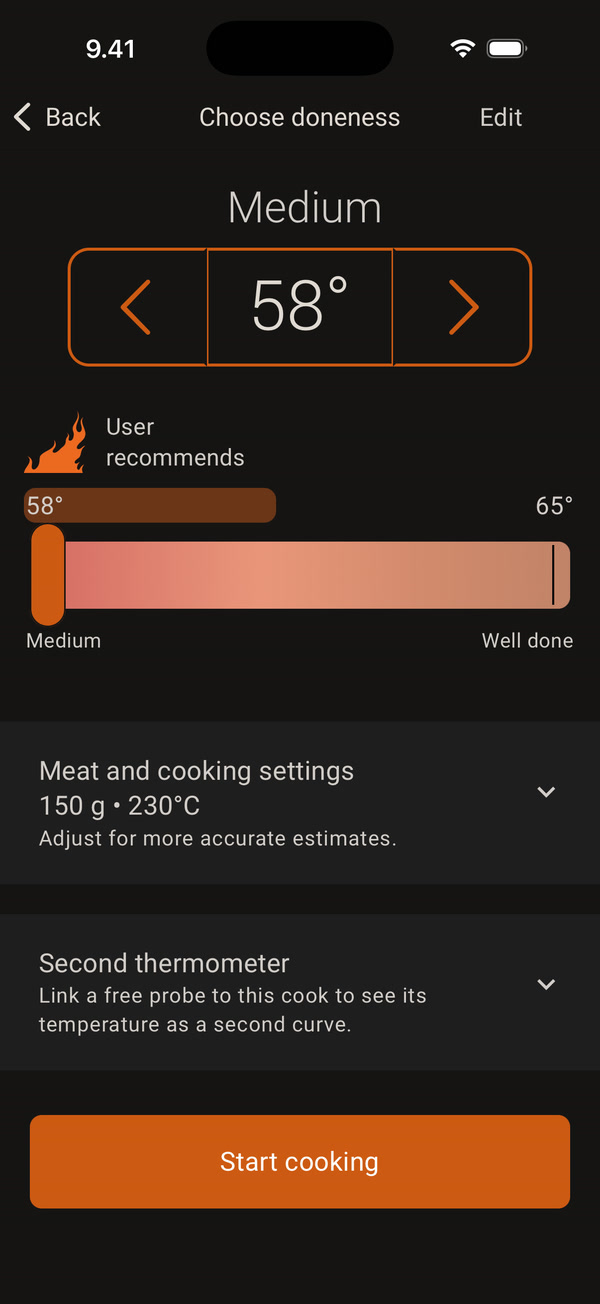
The start screen opens with the new setup selected. Check the doneness and tap Start cooking. Use Edit at the top to change the setup later.
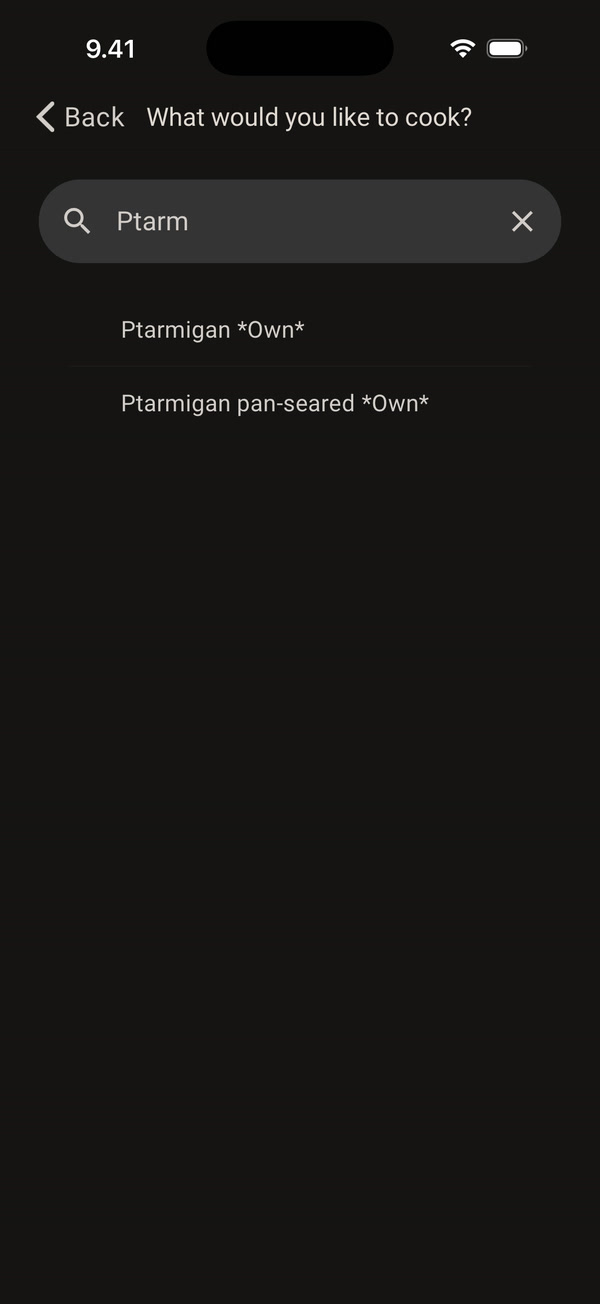
From now on you will find your setup under its category and type, and by searching. Your own setups and types are marked Own.
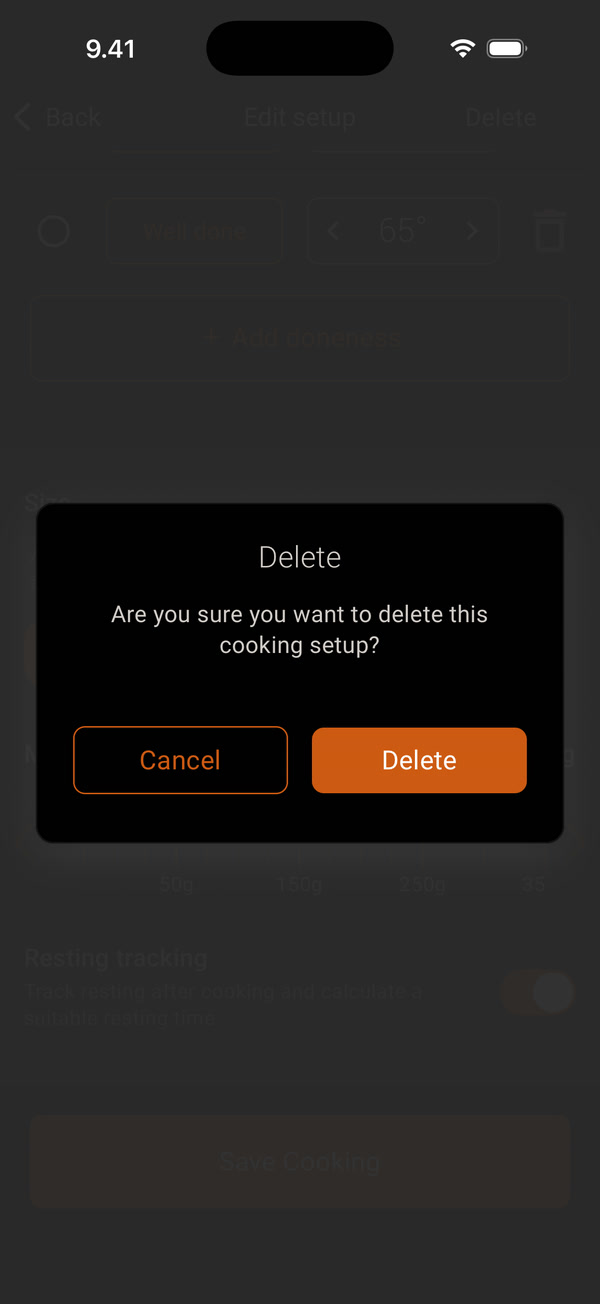
To delete a setup, select it, tap Edit and then Delete. Confirm the deletion.
Without an account the setup is saved on your phone and moves to your account when you create one. It works the same way with Hehku One and Hehku Duo.


